
Nowadays, Google Docs has become the most widely used tool for online writing, blogging, assignments, and content creation. However, many users are still unclear on how to check the word count in Google Docs, especially when working on mobile, Chromebook, or with multiple tabs.
In this article, we will understand step-by-step how to view the Google Docs word count, what the shortcuts are, how extensions work, and how to find the word count in Google Sheets.
What is Word Count in Google Docs?
Word count refers to the total number of words, characters (with spaces/without spaces), and pages present in a document. Google Docs word count is very important for bloggers, students, and writers because:
- SEO articles require following a word limit
- Assignments have minimum/maximum word requirements
- Freelancing platforms require providing an exact word count
Word Count Google Docs Shortcut (Desktop Users)
If you are using Google Docs on a laptop or PC, using a shortcut is the easiest way to check the word count.
Shortcut Keys:
- Windows / Chromebook:
👉Ctrl + Shift + C - Mac:
👉Command + Shift + C
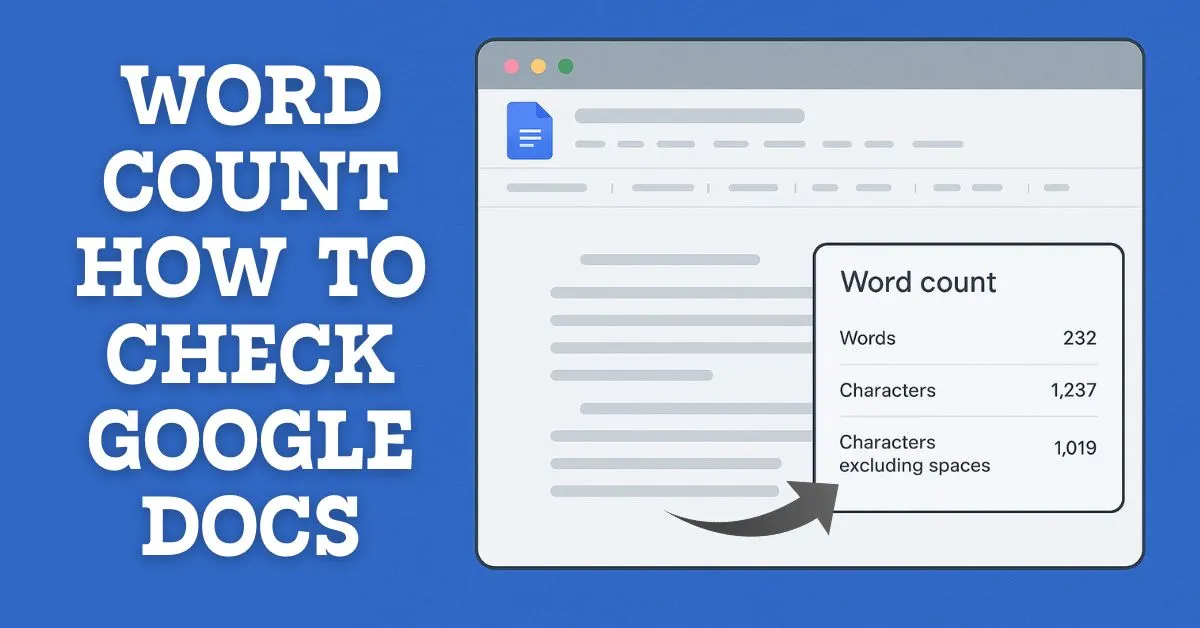
soon as you press the shortcut, a popup will open showing you:
- Total words
- Characters
- Characters excluding spaces
This is the fastest Google Docs word count shortcut.
How to Check Google Docs Word Count from the Menu?
If you don’t want to remember the shortcut, the menu method is also available.
Steps:
- Open your Google Docs document
- Click on Tools in the top menu
- Select the Word count option
- This method is best for beginners who are gradually learning Google Docs features.
How to See Google Docs Word Count Across All Tabs?
Many users work in multiple tabs or sections and want the word count to be displayed live.
- How to Enable Live Word Count:
- Go to Tools → Word count
- Enable “Display word count while typing” at the bottom
- Click OK
Now:
- The live Google Docs word count for all tabs will appear in the bottom left of the screen.
- The word count will update with typing in each tab or section.
How to Check Word Count on Google Docs Mobile (Android & iPhone)
The method for checking word count is slightly different for mobile users.
Android / iOS Steps:
- Open the Google Docs app
- Open the document
- Tap the three dots (⋮) in the top right corner
- Select the Word count option
Here you will find:
- Words
- Characters with spaces
- Characters without spaces
- This is the correct way to check word count on Google Docs mobile.
How to See Word Count on Google Docs Chromebook
For Chromebook users, the process is almost the same as on a desktop.
Chromebook Method:
- Shortcut:
Ctrl + Shift + C - Or
- Tools → Word count
Google Docs runs the web version on Chromebooks, so all features are fully supported.
This is how you can easily learn how to see the word count on Google Docs Chromebook.
Word Count Google Docs Extension – For Extra Features
If you do advanced level writing, extensions are very helpful.
Popular Word Count Google Docs Extension:
- Word Counter Plus
- Better Word Count
- Doc Tools
Benefits of Extensions:
- Word count of selected text
- Real-time analytics
- Multiple documents tracking
- Setting writing goals
Extensions are especially useful for bloggers and content writers.
Google Word Count vs. Other Tools
The biggest advantage of Google word count is that:
- It’s free
- It’s accurate
- No extra software needs to be installed
Compared to MS Word or online word counters, Google Docs word count is considered more reliable.
How to Find Word Count on Google Sheets?
Google Sheets doesn’t have a direct word count button, but it can be easily counted using a formula.
Example Formula:
=COUNTA(SPLIT(A1," "))
This formula will count the words in the text present in cell A1. With this method, you can easily find the word count on Google Sheets, especially for data analysis and content planning.
Common Mistakes in Word Counting
Many users unknowingly make mistakes, such as:
- Leaving extra spaces
- Not counting headings
- Confusing characters and words
- Pro tip: Always check the Google Docs word count across all tabs before final submission.
Pro Tips for Bloggers and Students
- Maintain a minimum of 800–1500 words for SEO articles
- Keep the live word count option ON
- Check the word count frequently when writing on mobile
- Only use extensions when genuinely needed
Conclusion
Now you should clearly understand how to check the word count in Google Docs on every device – whether it’s a desktop, mobile, Chromebook, or Google Sheets. The Google word count feature is a powerful tool for everyone, from beginners to professional writers, allowing you to check accurate word and character counts.
Additionally, if you ever need to find the word count of text outside of Google Docs, you can also use our recommended tool:
🔗 https://allareseotools.com/word-counter/
This tool is easy, fast, and free – and you can instantly check the word count of text written in any language. By using the shortcuts, menus, and extensions correctly, and also performing extra checks with the tool linked above, your writing workflow will become even smoother and more accurate.


1 thought on “Word Count How to Check Google Docs”